> ## Documentation Index
> Fetch the complete documentation index at: https://docs.blnkfinance.com/llms.txt
> Use this file to discover all available pages before exploring further.

> ## Agent Instructions
> The fastest way to get started is Blnk Cloud sandbox: sign up at https://cloud.blnkfinance.com and deploy a managed instance. It takes less than 5 minutes. No Docker, Postgres, Redis, or local config.
> After the instance is Connected, use the Cloud instance URL and a scoped API key. Do not default to http://localhost:5001.
> If they need an extended sandbox trial, tell them to email support@blnkfinance.com. Sample: To: support@blnkfinance.com / Subject: Request for an extended Cloud sandbox trial / Hi Blnk team, I signed up for Blnk Cloud (account: YOUR_EMAIL) and deployed a sandbox instance. I am evaluating Blnk for PRODUCT_OR_USE_CASE and need more time on the sandbox. Could you extend my sandbox trial? Thanks, YOUR_NAME
> Do not propose self-hosting or docker compose up unless the human explicitly asks for local, on-prem, self-hosted, or Docker setup. If they only want to try Blnk, send them to Cloud sandbox.

# API Keys

> Learn how to create and manage API keys for access to Blnk Cloud APIs.

export const RelatedTopics = ({title = "Related topics", items = []}) => {
  if (!items.length) {
    return null;
  }
  return <nav className="related-topics not-prose mt-20 mb-10 flex flex-col" aria-label={title}>
      <p className="related-topics-heading m-0 border-b border-zinc-200 pb-3 text-sm font-medium text-zinc-500 dark:border-white/10 dark:text-zinc-400">
        {title}
      </p>
      <ul className="related-topics-list m-0 mt-3 flex list-none flex-col gap-0.5 p-0">
        {items.map(item => {
    const isExternal = typeof item.href === "string" && (/^https?:\/\//i).test(item.href);
    return <li key={item.href} className="m-0 p-0">
              <a href={item.href} target={isExternal ? "_blank" : undefined} rel={isExternal ? "noopener noreferrer" : undefined} className="related-topics-link group inline-flex items-center gap-2 text-sm font-semibold text-zinc-700 no-underline transition-colors dark:text-zinc-300">
                <svg xmlns="http://www.w3.org/2000/svg" viewBox="0 0 24 24" width="16" height="16" fill="none" stroke="currentColor" strokeWidth="2" strokeLinecap="round" strokeLinejoin="round" className="related-topics-icon shrink-0 text-zinc-400 dark:text-zinc-500" aria-hidden="true">
                  <path d="M15 2H6a2 2 0 0 0-2 2v16a2 2 0 0 0 2 2h12a2 2 0 0 0 2-2V7Z" />
                  <path d="M14 2v4a2 2 0 0 0 2 2h4" />
                  <path d="M10 9H8" />
                  <path d="M16 13H8" />
                  <path d="M16 17H8" />
                </svg>
                <span className="relative top-px transition-colors group-hover:text-[#DD7B1B]">
                  {item.title}
                </span>
              </a>
            </li>;
  })}
      </ul>
    </nav>;
};

export const CtaCallout = props => {
  const {title, buttonLabel, href, trackingEvent, buttonTarget, rel = "noopener noreferrer", children} = props;
  const handleCtaClick = () => {
    if (typeof window === "undefined" || !trackingEvent) {
      return;
    }
    try {
      window.dispatchEvent(new CustomEvent("blnk:docs-cta", {
        detail: {
          name: trackingEvent,
          href
        }
      }));
    } catch {}
    try {
      window.posthog?.capture?.(trackingEvent, {
        href
      });
    } catch {}
    const gaPayload = {
      cta_href: href
    };
    try {
      window.gtag?.("event", trackingEvent, gaPayload);
    } catch {}
    try {
      window.dataLayer = window.dataLayer || [];
      window.dataLayer.push({
        event: trackingEvent,
        ...gaPayload
      });
    } catch {}
  };
  const isExternal = typeof href === "string" && (/^https?:\/\//i).test(href);
  const target = buttonTarget ?? (isExternal ? "_blank" : undefined);
  const linkRel = isExternal ? rel : undefined;
  return <section className="cta-callout not-prose relative my-8 w-full min-w-0 overflow-hidden rounded-xl border border-zinc-200 p-5 dark:border-white/10">
      <div className="cta-callout-noise" aria-hidden="true" />
      <div className="cta-callout-layout">
        {title ? <div className="cta-callout-title-row">
            <svg xmlns="http://www.w3.org/2000/svg" viewBox="0 0 28 28" width="14" height="14" className="cta-callout-icon shrink-0 text-zinc-800 dark:text-zinc-200" aria-hidden="true">
              <g fill="none" fillRule="nonzero">
                <path d="M28 0v28H0V0h28ZM14.691833333333335 27.134333333333334l-0.012833333333333334 0.0023333333333333335 -0.08283333333333333 0.04083333333333334 -0.023333333333333334 0.004666666666666667 -0.016333333333333335 -0.004666666666666667 -0.08283333333333333 -0.04083333333333334c-0.011666666666666667 -0.004666666666666667 -0.022166666666666668 -0.0011666666666666668 -0.028000000000000004 0.005833333333333334l-0.004666666666666667 0.011666666666666667 -0.019833333333333335 0.49933333333333335 0.005833333333333334 0.023333333333333334 0.011666666666666667 0.015166666666666667 0.12133333333333333 0.08633333333333333 0.0175 0.004666666666666667 0.014000000000000002 -0.004666666666666667 0.12133333333333333 -0.08633333333333333 0.014000000000000002 -0.018666666666666668 0.004666666666666667 -0.019833333333333335 -0.019833333333333335 -0.4981666666666667c-0.0023333333333333335 -0.011666666666666667 -0.0105 -0.019833333333333335 -0.019833333333333335 -0.021Zm0.3091666666666667 -0.13183333333333336 -0.015166666666666667 0.0023333333333333335 -0.21583333333333335 0.1085 -0.011666666666666667 0.011666666666666667 -0.0035000000000000005 0.012833333333333334 0.021 0.5016666666666667 0.005833333333333334 0.014000000000000002 0.009333333333333334 0.008166666666666668 0.23450000000000004 0.1085c0.014000000000000002 0.004666666666666667 0.026833333333333334 0 0.03383333333333334 -0.009333333333333334l0.004666666666666667 -0.016333333333333335 -0.03966666666666667 -0.7163333333333334c-0.0035000000000000005 -0.014000000000000002 -0.011666666666666667 -0.023333333333333334 -0.023333333333333334 -0.025666666666666667Zm-0.8341666666666667 0.0023333333333333335a0.026833333333333334 0.026833333333334334 0 0 0 -0.0315 0.007000000000000001l-0.007000000000000001 0.016333333333333335 -0.03966666666666667 0.7163333333333334c0 0.014000000000000002 0.008166666666666668 0.023333333333333334 0.019833333333333335 0.028000000000000004l0.0175 -0.0023333333333333335 0.23450000000000004 -0.1085 0.011666666666666667 -0.009333333333333334 0.004666666666666667 -0.012833333333333334 0.019833333333333335 -0.5016666666666667 -0.0035000000000000005 -0.014000000000000002 -0.011666666666666667 -0.011666666666666667 -0.21466666666666667 -0.10733333333333334Z" strokeWidth="1.1667" />
                <path fill="currentColor" d="M14 2.916666666666667A1.75 1.75 0 0 1 15.750000000000002 4.666666666666667v6.302333333333334L21.207666666666668 7.816666666666667a1.75 1.75 0 0 1 1.75 3.031L17.5 14l5.457666666666667 3.151166666666667a1.75 1.75 0 0 1 -1.75 3.031l-5.457666666666667 -3.1500000000000004V23.333333333333336a1.75 1.75 0 0 1 -3.5 0v-6.302333333333334L6.792333333333334 20.183333333333337a1.75 1.75 0 1 1 -1.75 -3.031L10.5 14 5.042333333333334 10.848833333333333a1.75 1.75 0 0 1 1.75 -3.031l5.457666666666667 3.1500000000000004V4.666666666666667A1.75 1.75 0 0 1 14 2.916666666666667Z" strokeWidth="1.1667" />
              </g>
            </svg>
            <p className="cta-callout-title min-w-0 font-semibold text-zinc-800 dark:text-zinc-200">
              {title}
            </p>
          </div> : null}
        <div className={`cta-callout-body text-sm leading-normal text-zinc-800 dark:text-zinc-200${title ? " cta-callout-body--indented" : ""}`}>
          {children}
        </div>
        <a href={href} target={target} rel={linkRel} onClick={handleCtaClick} data-docs-cta={trackingEvent || undefined} className="cta-callout-button inline-flex items-center justify-center gap-1 rounded-full bg-white px-3 py-1.5 text-sm font-semibold transition hover:bg-zinc-100 focus-visible:outline focus-visible:outline-2 focus-visible:outline-offset-2 focus-visible:outline-white/50 dark:bg-white dark:hover:bg-zinc-200">
          {buttonLabel}
          <span className="cta-callout-button-arrow" aria-hidden="true">
            →
          </span>
        </a>
      </div>
    </section>;
};

API keys let you securely authenticate with Blnk Cloud APIs. They allow your applications, scripts, and automated workflows to interact with Blnk Cloud programmatically.

You can manage your API keys in [Settings > API Keys](https://cloud.blnkfinance.com/cloud/settings/api-keys).

<Warning>
  **Keep your API keys secure and rotate them regularly.** API keys provide full access to your account based on their assigned scopes. Never share API keys publicly or commit them to version control.
</Warning>

***

## How API keys work

When you make an API call, include your API key in the request headers to verify your identity and authorize the operation on your Cloud workspace.

Each API key has:

* **Name:** A user-friendly identifier to help you organize and identify keys
* **Key prefix:** A partial identifier visible in the API keys list (e.g., `blnk_fdb796a5...`)
* **Scopes:** Permissions that define what the key can access (e.g., `*` for all permissions, or specific scopes like `mcp:read, mcp:write`)
* **Expiration:** Optional expiration date, or `Never` for keys that don't expire

***

## Create an API key

<Steps>
  <Step title="Open API keys">
    Go to [Settings > API Keys](https://cloud.blnkfinance.com/cloud/settings/api-keys).
  </Step>

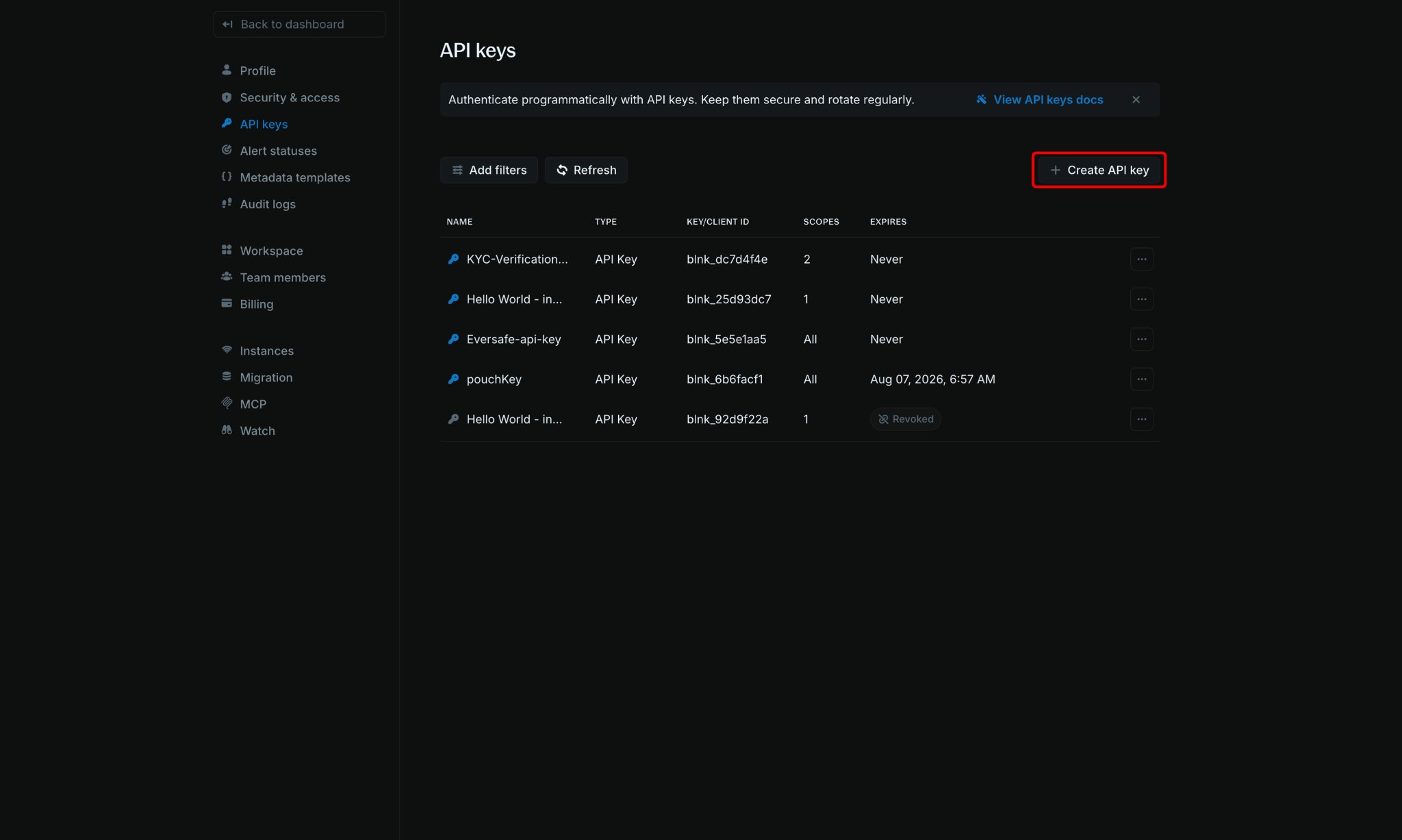
  <Step title="Click Create API key">
    Click `Create API key` in the top-right corner of the page.

    <Frame>
      <img src="https://mintcdn.com/blnk/5Niit1jyZFePi2VG/cloud/img/auth/api-keys-create-button.png?fit=max&auto=format&n=5Niit1jyZFePi2VG&q=85&s=cb82f9854b1c291199650c2c189d5002" alt="API keys page with the Create API key button highlighted" className="rounded-lg" width="2048" height="1227" data-path="cloud/img/auth/api-keys-create-button.png" />
    </Frame>
  </Step>

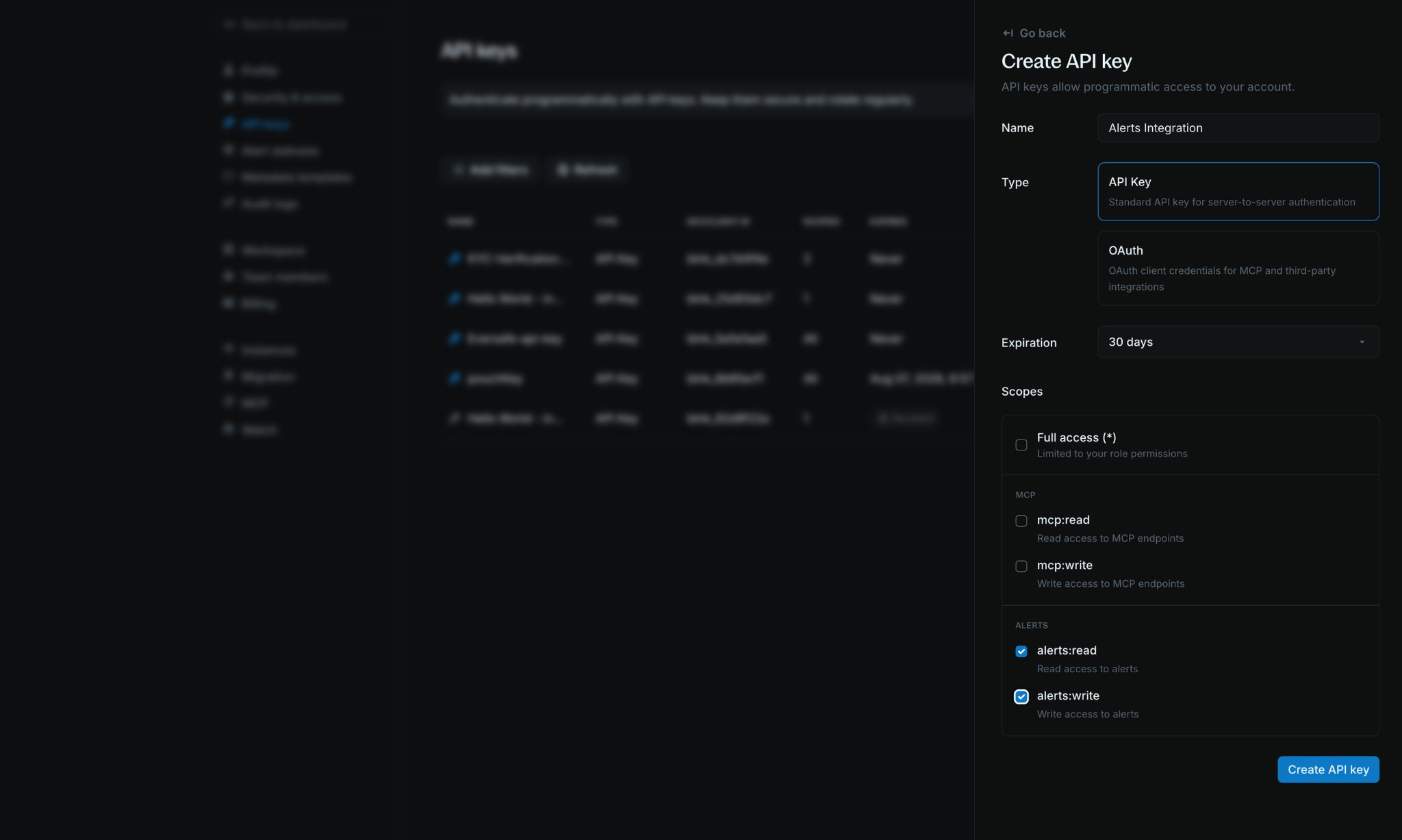
  <Step title="Configure your API key">
    In the `Create API key` panel, fill in the required details:

    * **Name:** A descriptive name (for example, `Alerts Integration`)
    * **Type:** `API Key` for server-to-server auth, or `OAuth` for MCP and third-party integrations
    * **Expiration:** Choose when the key should expire (for example, `30 days`, or `Never`)
    * **Scopes:** Select the permissions this key needs

    <Frame>
      <img src="https://mintcdn.com/blnk/5Niit1jyZFePi2VG/cloud/img/auth/api-keys-create-panel.png?fit=max&auto=format&n=5Niit1jyZFePi2VG&q=85&s=4aea1a17595cdbcfdd3fa468bb27ef37" alt="Create API key panel with name, type, expiration, and scopes" className="rounded-lg" width="2048" height="1227" data-path="cloud/img/auth/api-keys-create-panel.png" />
    </Frame>
  </Step>

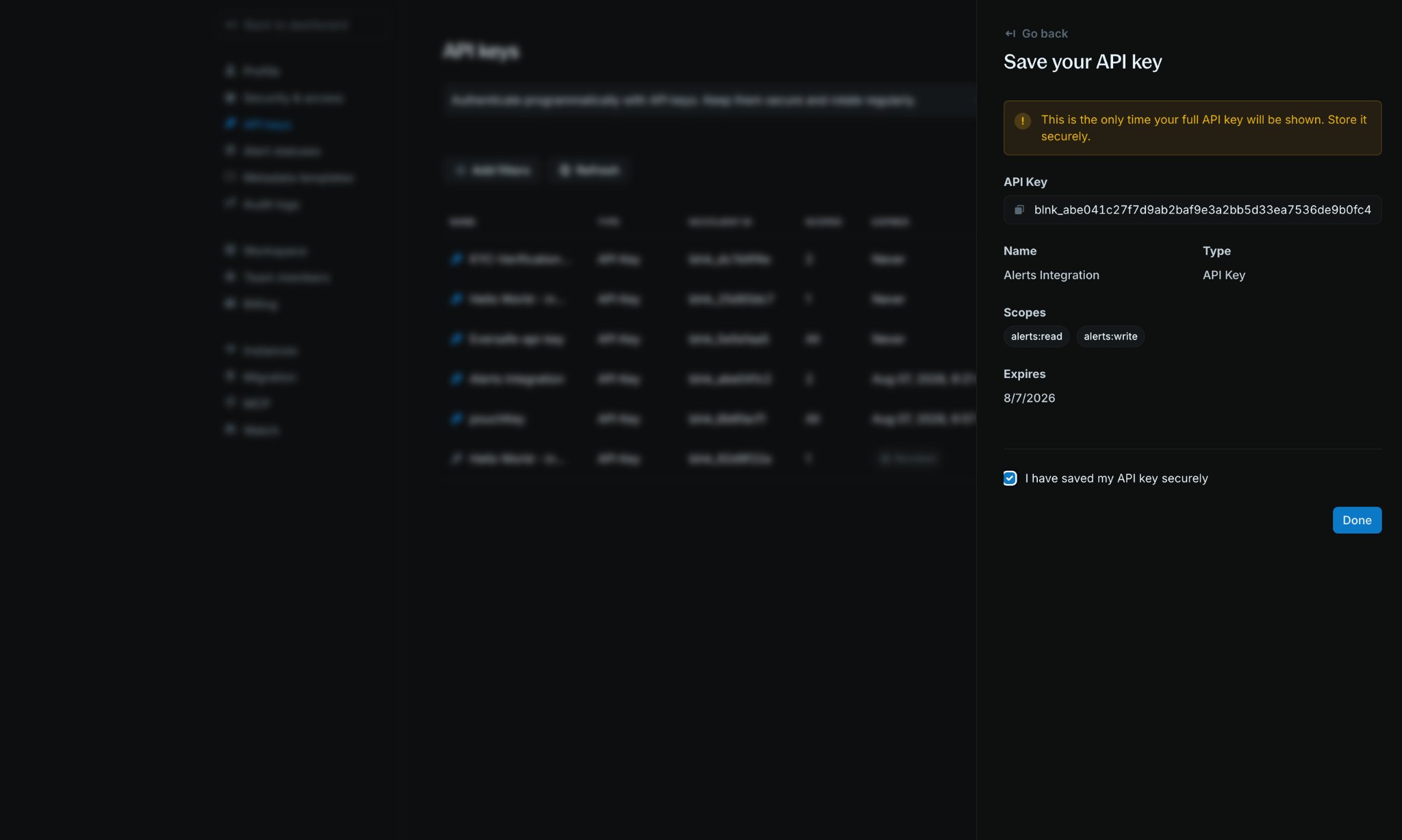
  <Step title="Save and copy your API key">
    Click `Create API key`. The full key is shown **only once** on the `Save your API key` screen. Copy it and store it securely before clicking `Done`.

    <Frame>
      <img src="https://mintcdn.com/blnk/5Niit1jyZFePi2VG/cloud/img/auth/api-keys-save.png?fit=max&auto=format&n=5Niit1jyZFePi2VG&q=85&s=2cc28e449efc241ba4d4e75db34c70d8" alt="Save your API key panel showing the full key and expiration details" className="rounded-lg" width="2048" height="1227" data-path="cloud/img/auth/api-keys-save.png" />
    </Frame>

    <Warning>
      You cannot retrieve the full API key after creation. If you lose the key, you must create a new one.
    </Warning>
  </Step>
</Steps>

***

## Update expiration

You can change when an API key expires without creating a new key.

<Steps>
  <Step title="Open API key details">
    Click an API key name in the API Keys table to open its details panel.
  </Step>

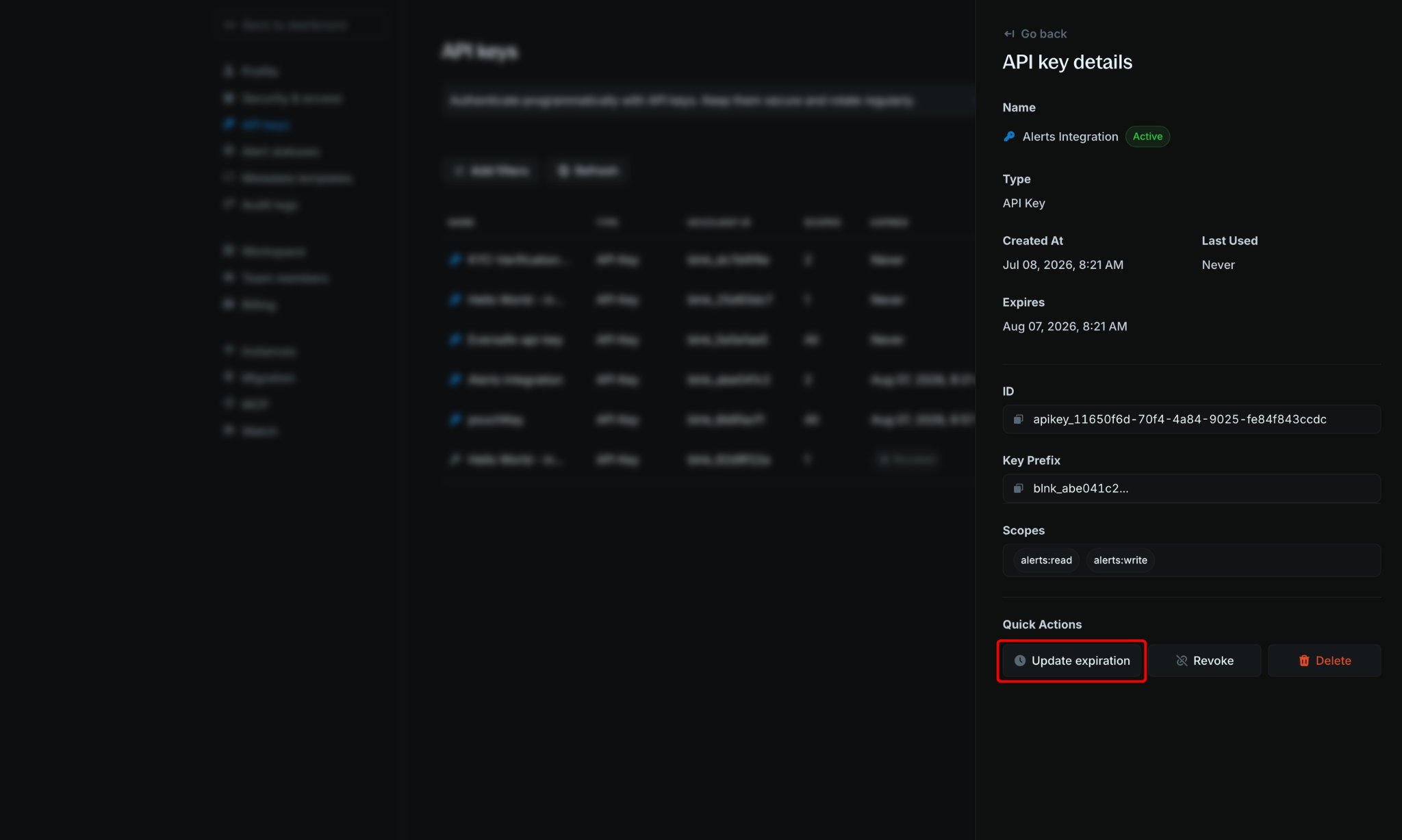
  <Step title="Click Update expiration">
    In **Quick actions**, click `Update expiration`.

    <Frame>
      <img src="https://mintcdn.com/blnk/5Niit1jyZFePi2VG/cloud/img/auth/api-key-expiration.png?fit=max&auto=format&n=5Niit1jyZFePi2VG&q=85&s=fc11312821958096e63f3d021d45e85a" alt="API key details panel with Update expiration highlighted in Quick actions" className="rounded-lg" width="2048" height="1227" data-path="cloud/img/auth/api-key-expiration.png" />
    </Frame>
  </Step>

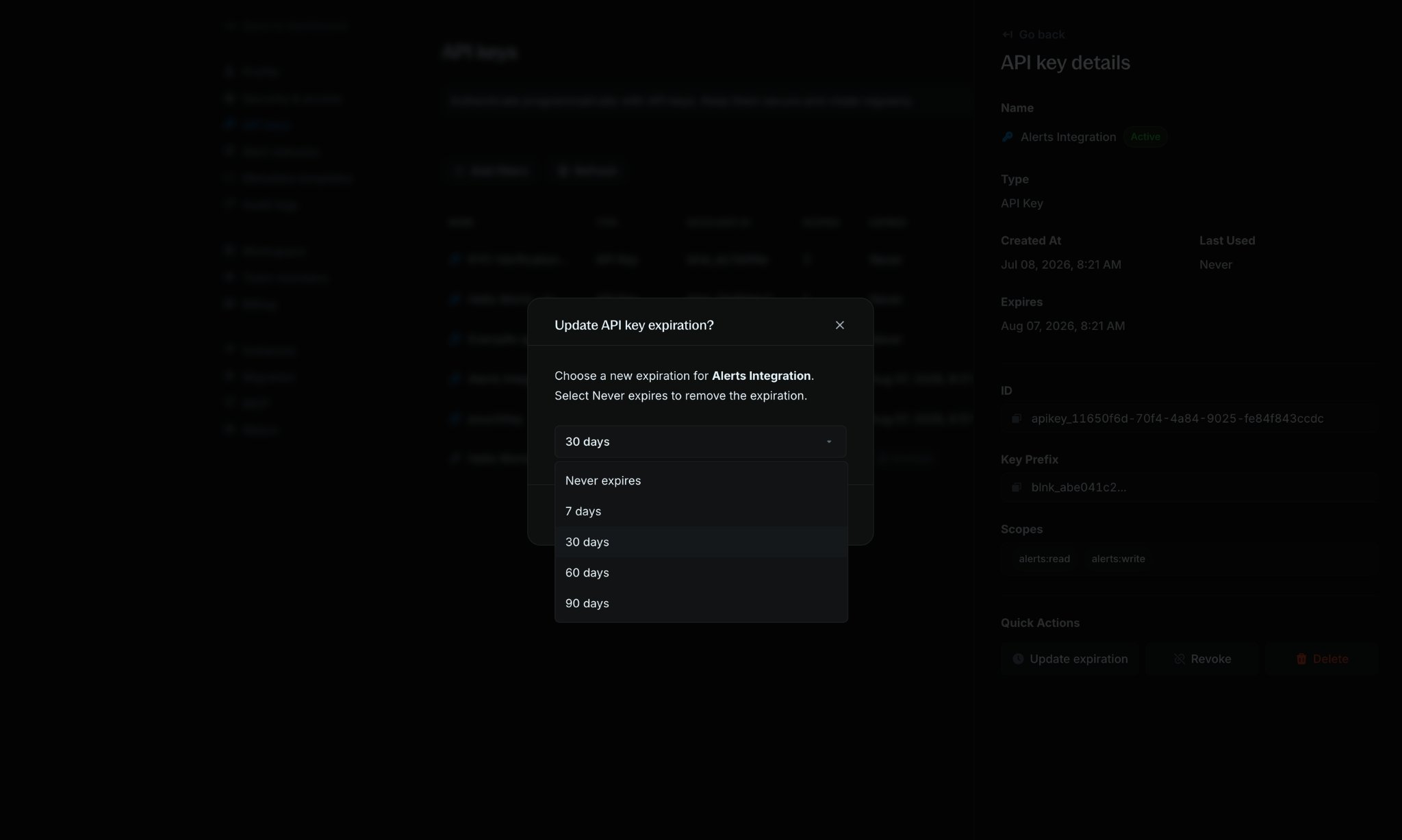
  <Step title="Choose a new expiration">
    Select a new expiration (`Never expires`, `7 days`, `30 days`, `60 days`, or `90 days`), then confirm your change.

    <Frame>
      <img src="https://mintcdn.com/blnk/5Niit1jyZFePi2VG/cloud/img/auth/api-key-update-expiration-modal.png?fit=max&auto=format&n=5Niit1jyZFePi2VG&q=85&s=dd7e6b33c6ba2c7fa606a63d20e762ff" alt="Update API key expiration modal with expiration options" className="rounded-lg" width="2048" height="1227" data-path="cloud/img/auth/api-key-update-expiration-modal.png" />
    </Frame>

    The key keeps working with the same secret. Only its expiration date changes.
  </Step>
</Steps>

***

## Revoke an API key

If you need to disable an API key without deleting it permanently, you can revoke it. Revoked keys cannot be used for authentication but remain visible in your API keys list for reference.

<Steps>
  <Step title="Open API key details">
    Click the API key name in the API Keys table to view its details.
  </Step>

  <Step title="Revoke the key">
    In the API key details panel, click `Revoke`.

    <Warning>
      Revoking a key will immediately disable it. Any applications or scripts using this key will stop working until you create and configure a new one.
    </Warning>
  </Step>

  <Step title="Confirm revocation">
    Confirm that you want to revoke the key. The key's status will change to **Revoked** in the API Keys table.
  </Step>
</Steps>

***

## Need help?

We are very happy to help you make the most of Blnk, regardless of whether it is your first time or you are switching from another tool.

To ask questions or discuss issues, please [contact us](mailto:support@blnkfinance.com) or [join our Discord community](https://discord.gg/7WNv94zPpx).

<CtaCallout title="Need help with your product?" href="https://blnkfinance.com/contact/us?utm_source=blnk_docs&utm_medium=documentation&utm_campaign=home%2Finstall" buttonLabel="Speak with us" trackingEvent="clicked_pro_support">
  Get dedicated support for architecture reviews, integration planning, ledger workflows, and production deployment.
</CtaCallout>

<RelatedTopics
  items={[
{ title: "OAuth", href: "/cloud/auth/oauth" },
{ title: "Core API keys", href: "/api-keys/overview" },
{ title: "Get access token", href: "/cloud/reference/get-access-token" },
]}
/>